If you’re running OpenClaw, which is your digital employee. Paperclip can be your first autonomous company, which will manage multiple agents like CEO, CMO, CTO, Claudecoder, CodexCoder, etc. to run whole operations like coding, designing, content writing, and researching.
Running the AI system requires a solid setup to perform better on VPS.
In the post, I will guide you on how to set up Paperclip on a VPS. You will be able to access it on an HTTPS connection. I am going to use Kamatera, which offers a 30-day trial.
Let’s get started.

Table of Contents
What is PaperClip?
Paperclip is an open-source orchestration that is built to manage multiple agents simultaneously in an organization’s order.
You can manage OpenClaw, Claude Code, Codex, and many models in one place; you can assign them tasks based on their specialization, and Paperclip will get your task done through relevant agents.
You can also set budgets for each agent. So you can save yourself from burning cash due to agents getting stuck in loops.
Use Case of Paperclip
- Run a whole company like digital marketing in autonomous mode.
- Launch faceless Tiktok factory
- Auto stock and crypto trading with AI research
- Content marketing agency
- E-commerce operator
- Dev agency
- Generate real estate leads
Why a VPS is Needed for Paperclip
If I say it in another way, Paperclip is an OS where multiple agents are going to play. Definitely, these consume resources at a high level. A host with dedicated resources like a VPS is the right option to be a strong foundation.
Volatility – Agents wake each 30 seconds, check their inbox, and execute tasks. It just spikes high CPU usage.
Flexibility – Flexibility in resource allocation will actually find the sweet spot where your AI system will run non-interruptedly and you will pay only what you’ve chosen.
Isolaton – VPS carries an isolation nature that ensures proper resource utilization while maintaining utmost security wall.
Full control – You start from root at VPS. So you will have total control of each step of configurations. So you can tweak the performance in your style.
Prerequisite
Terminal – On a MacBook, you already have it, and for Windows, download PuTTY.
System Requirement
| Component | Minimum (Testing) | Recommended (Production) | High-Scale (Multiple AI Agents) |
|---|---|---|---|
| CPU | 1 vCPU | 2–4 vCPU | 6–8+ vCPU |
| RAM | 2 GB | 4–8 GB | 16+ GB |
| Storage | 20 GB SSD | 40–80 GB SSD | 100+ GB NVMe |
| OS | Ubuntu 22.04 | Ubuntu 22.04 / 24.04 | Ubuntu 24.04 |
| Runtime | Node.js 20+ | Node.js 20+ / 22 LTS | Node.js 22 LTS |
| Package Manager | pnpm (latest) | pnpm (latest) | pnpm (latest) |
| Database | Embedded PostgreSQL | Embedded or External PostgreSQL | External PostgreSQL (recommended) |
| Network | Basic IPv4 | Public IP + Domain | Load-balanced / multi-node |
| Port | 3100 (default) | 3100 + reverse proxy | 3100 + Nginx/Caddy + SSL |
| Uptime | Manual run | 24/7 uptime | Process manager + auto-restart |
| Security | Local mode | Authenticated (private/public) | Full auth + firewall + SSL |
Installing Node.js
1.Login to the Kamatera Console.
2.Choose server specs, data center, NodeJS app, name server and set a password.
3.Hit create server to install.
4.Login to the server.
5.Create a workspace:
mkdir ~/paperclip
cd ~/paperclip
Installing Claude Code
sudo npm install -g @anthropic-ai/claude-code
It’s time to authenticate Claude Code. it will open a browser OAuth flow. Finish it.
Launch Claude again and complete login.
claude
Installing Paperclip
1.Run the setup command
npx paperclipai onboard –yes
It creates an embedded PostgreSQL database and generates secrets.
2.Write a config to ~/.paperclip/. When it is done, you will see a summary confirming everything passed.
3.Start the server again to see whether it works:
npm paperclipai run
4.Now Paperclip ASCII banner and Server Listening on 127.0.0.1:31000 will appear. Kill it with CTRL+C.
Installing Caddy For HTTPS
1.Run it
sudo apt install -y caddy
2.Point your VPS to your domain to access Paperclip.
3.For basic auth, create a hashed password
caddy hash-password
4.Enter password, copy the hash and edit the Caddyfile.
sudo nano /etc/caddy/Caddyfile
5.Replace the entire content with:
yourdomain.com {
basicauth {
yourname Hashed Password
}
reverse_proxy 127.0.0.1:3100
}
6.Restart Caddy
sudo systemctl restart caddy
Caddy will automatically generate a TLS certificate.
Run Papercip as a Service
As you close the SSH session, Paperclip will shut down. We need to run it as a service for 24/7 running.
1.Run it
sudo nano /etc/systemd/system/paperclip.service
[Unit]
Description=Paperclip AI Orchestration
After=network.target
[Service]
User=deploy
WorkingDirectory=/home/deploy/paperclip
ExecStart=/usr/bin/npx paperclipai run
Restart=always
RestartSec=10
Environment=HOME=/home/deploy
[Install]
WantedBy=multi-user.target
2.Enable and start it
sudo systemctl daemon-reload
sudo systemctl enable paperclip
sudo systemctl start paperclip
3.Check running status of Paperclip
sudo systemct status paperclip
Now access yourdomain.com and log in to Paperclip, add an API key, and run autonomous company.
A Real One-click Paperclip Setup

In the setup, we will use Hostinger, which deploys Paperclip automatically on Docker with a click.
You need to require a VPS plan and model API key.
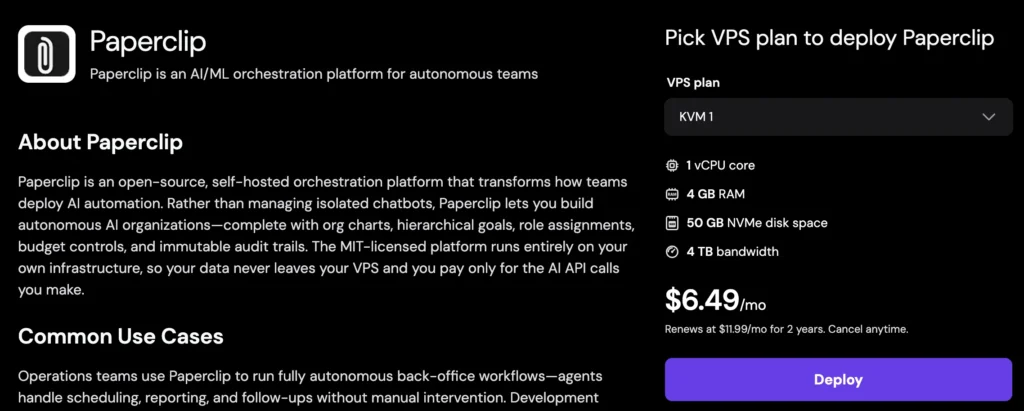
2.Choose the KVM1 plan, which brings 1 vCPU, 4 GB RAM, 50 GB NVMe, and 4 TB bandwidth.
3.Choose the closest data centers. Make a payment and complete the signup.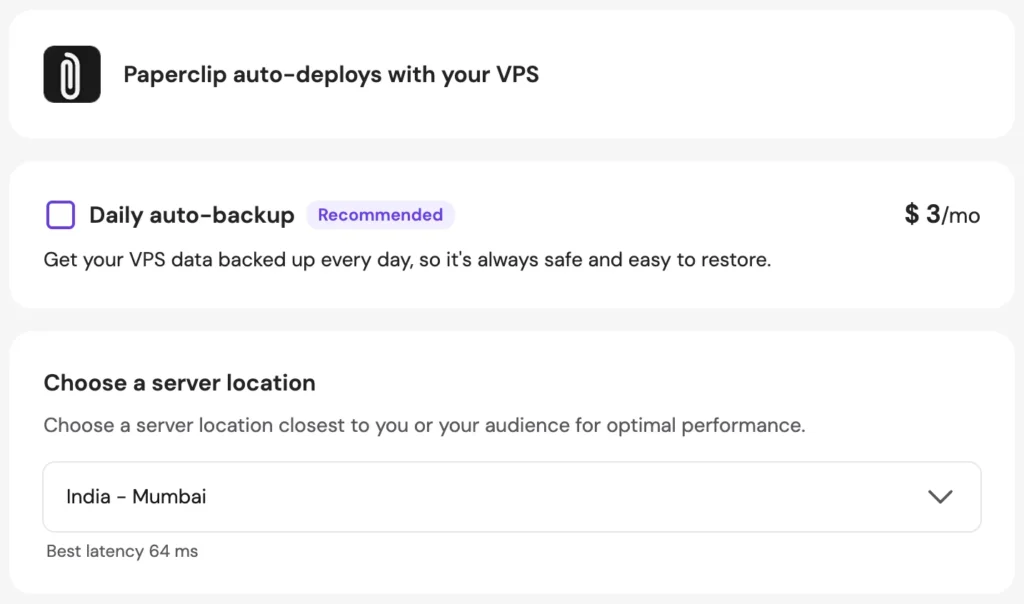
4.Fill in the following details to finish Paperclip configuration.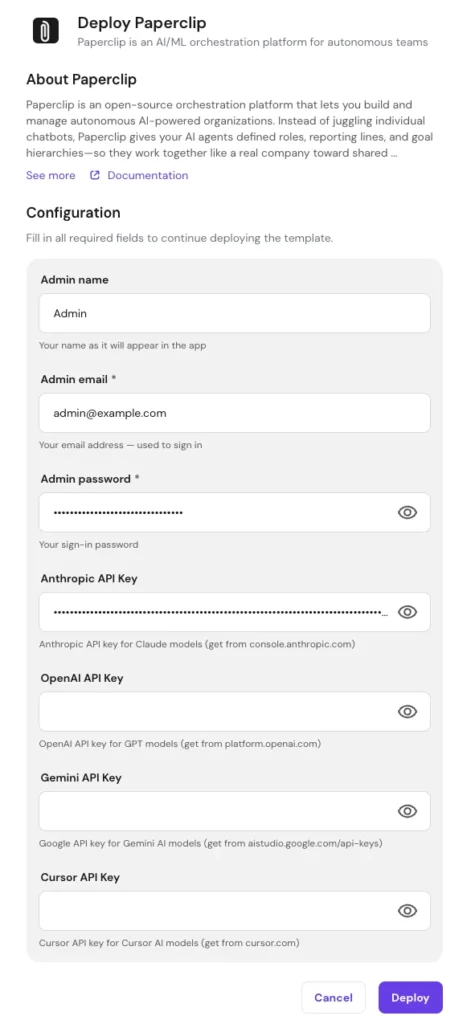
- admin name
- admin email
- admin password
- Anthropic API key
- Open API key
- Gemini API key
- Cursor API key
5.You can add only one API key and hit deploy.
Setting up your VPS will start; that will take a few moments.
6.Now head to Docker > Projects > Hit Open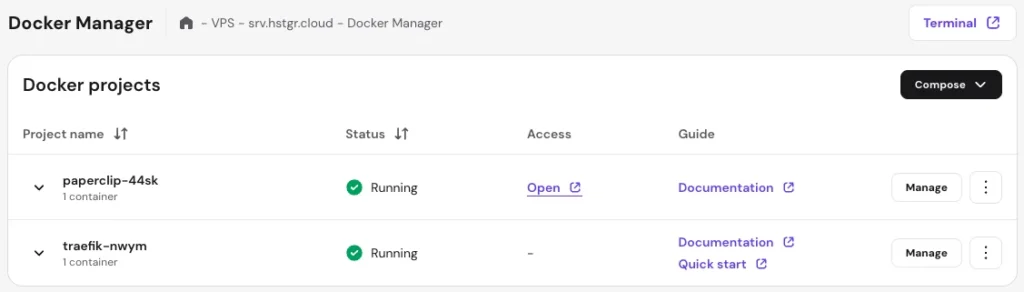
7.Enter email and password to log in.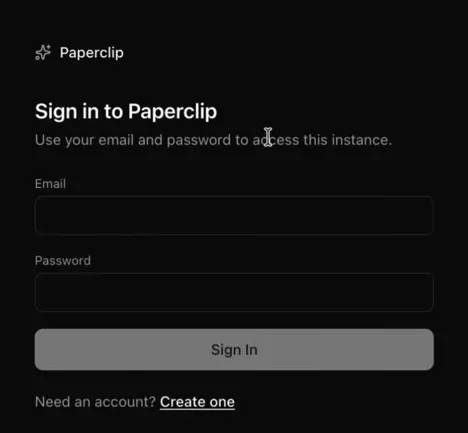
8.Now set up and run your AI company.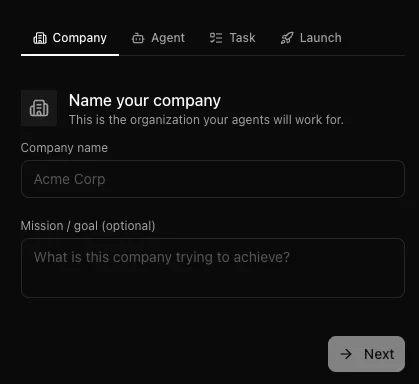
9.Create your first agent as a CEO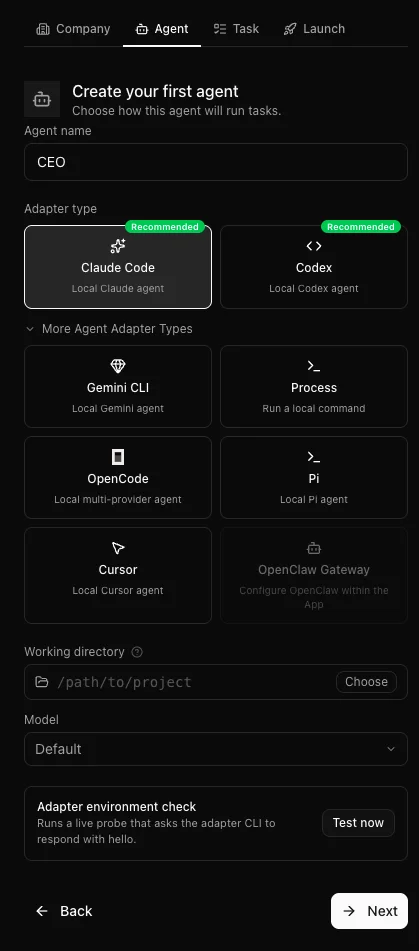
10.Assign task. 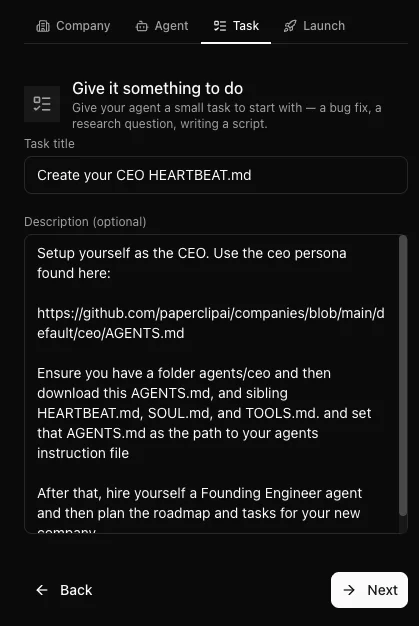
11.Paperclip Dashboard. 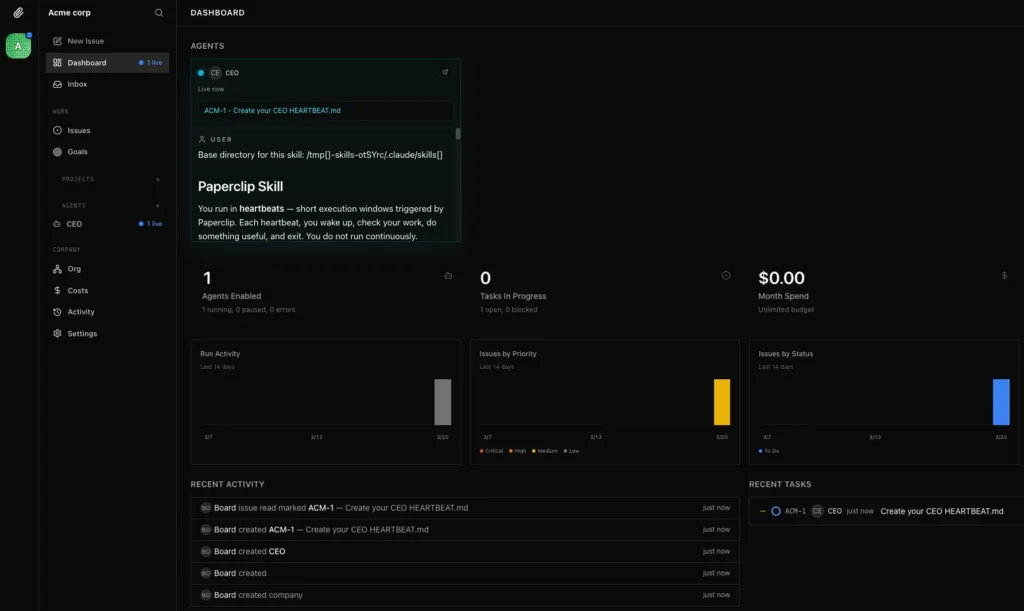
If you find the tutorial helpful, please share it with your friends and colleagues. Do also check how to install OpenClaw.
FAQ
1. Do I really need a VPS to run Paperclip?
Yes. Paperclip is not a lightweight tool—it runs multiple AI agents that constantly process tasks. A VPS gives you dedicated CPU, RAM, and full control, which ensures stability, better performance, and uninterrupted execution. Shared hosting simply won’t handle this workload efficiently.
2. Can I run Paperclip on my local computer instead?
Technically yes, but it’s not recommended for long-term use. Your local machine won’t provide 24/7 uptime, and performance may drop when agents scale. A VPS ensures your AI system runs continuously without interruptions, even when you’re offline.
3. Which VPS specs are best for beginners?
For testing, you can start with 1 vCPU and 2 GB RAM, but for smooth performance, go with at least 2–4 vCPU and 4–8 GB RAM. If you plan to run multiple agents, higher specs (8+ vCPU, 16GB RAM) will give you much better results.
4. How do I access Paperclip securely over the internet?
You can use a reverse proxy like Caddy to connect your domain and enable HTTPS. It also allows you to add basic authentication, so only authorized users can access your Paperclip dashboard securely.
5. What happens if I close my VPS SSH session?
If you run Paperclip manually, it will stop when you disconnect. That’s why you should set it up as a systemd service, so it runs in the background and automatically restarts—ensuring 24/7 uptime for your AI agents.

Ravi Kumar is a Server Performance Analyst with over 4 years of experience benchmarking cloud infrastructure. He has optimized and stress-tested over 150+ websites, digging deep into uptime, disk latency, and CPU performance. Whether you’re looking for a free trial or a high-performance production server, Ravi uses real-world data to help you find the perfect host.